Using Delivery Insights in Practice: A Guide for Scrum Masters
Who this guide is for
This guide shows scrum masters, team leads and delivery managers how to use CodeScene's Delivery factor in two ceremonies: Looking back in retrospectives and looking forward in sprint planning. It assumes your PM integration is already running. See Integrating CodeScene with Azure DevOps or Integrating CodeScene with Jira for setup.
Delivery is a lag metric. Code Health predicts; Delivery demonstrates. The Delivery KPIs show the business impact that code quality has already had on time lost to unplanned work and development speed.
There is one proactive exception: Pending Work shows tasks where coding looks finished but the ticket is still open. Spotting these early lets you unblock them before they age.
Before you start, check two things:
A task only appears in Delivery if at least one commit is linked to it (task ID in the commit message, branch name or PR, or an Azure DevOps work item linked to the PR).
Only commits on the main analysis branch are counted, so work that lives only on feature branches won't show yet.
The three Delivery KPIs and their benchmarks

The Delivery tab shows three KPIs: One each for waste, speed and risk. Each is coloured against a benchmark so you can tell at a glance whether the team is in a healthy, problematic or bad range. The scales are also explained in the KPI tooltips in the CodeScene UI.
Reading the KPIs:
Unplanned Work is unrealised potential. Every point above 15% is capacity that could have gone to the roadmap. By default "Bug/Defect" counts as unplanned, you can change which work types count in the PM integration settings.
Development Time is calculated automatically from Git and PM data down to the file level with no estimates or manual time tracking. Some tasks naturally take longer, so look at the trend and the outliers, not one number.
Pending Work rises when the team starts more than it finishes. Large, parallel tasks lengthen feedback loops and raise the cost of failure.
CodeScene's Code Red research found that features are developed up to 10x faster in healthy code, with 15x fewer defects. This is why improvements to Code Health should show up later as shorter Development Time and less Unplanned Work.
Use case 1: Retrospectives. Look back at waste, speed and risk
In a retrospective, the Delivery view turns "the sprint felt slow" into specific tasks and files the team can discuss. Filter the Delivery view by your team (and domain, if configured) and set the time span to match the sprint or release.
Waste: Are low Code Health files defect magnets?
Open Delivery and check the Unplanned Work KPI and its trend against the benchmark.
If unplanned work is high, open Code > Technical Debt (the hotspot map) and switch on the Defects and Low Code Health combined aspects.
Look for files that are both red (low Code Health) and dense with defects. Use the Defect Density view to see how concentrated bug fixes are. It's common for a large share of bugs to sit in a small share of the code.
Ask the team: Did the bugs we fixed this sprint come from the same few files? Would improving those files reduce next sprint's unplanned work?
Speed: Which tasks took longer than others?
In Delivery, scroll to the task table below the Development Time chart. It highlights long-running tasks and bottlenecks in development and post-coding stages (review, QA, deployment).
Pick the outliers and note their issue IDs.
Ask the team: Was the task under-scoped, blocked on review, or slowed by hard-to-change code?
Risk: Are pending tasks blocked?
Pending Work is the proactive part of Delivery. A pending task is one where development work appears complete, commits are in, but the ticket hasn't moved to done.
Open the Pending Work view and list tasks that have been pending for a while.
For each one, find out what's holding it. E.g. Waiting for review, waiting for QA, waiting for a deploy, or simply forgotten in the PM tool.
Action: Assign an owner to unblock each task before the next stand-up. This doesn't have to wait for the retro — a quick weekly check works well.
Drill down: Which files did a task touch?
On the technical debt map, filter by issue ID to highlight the files that were changed as part of a specific task.
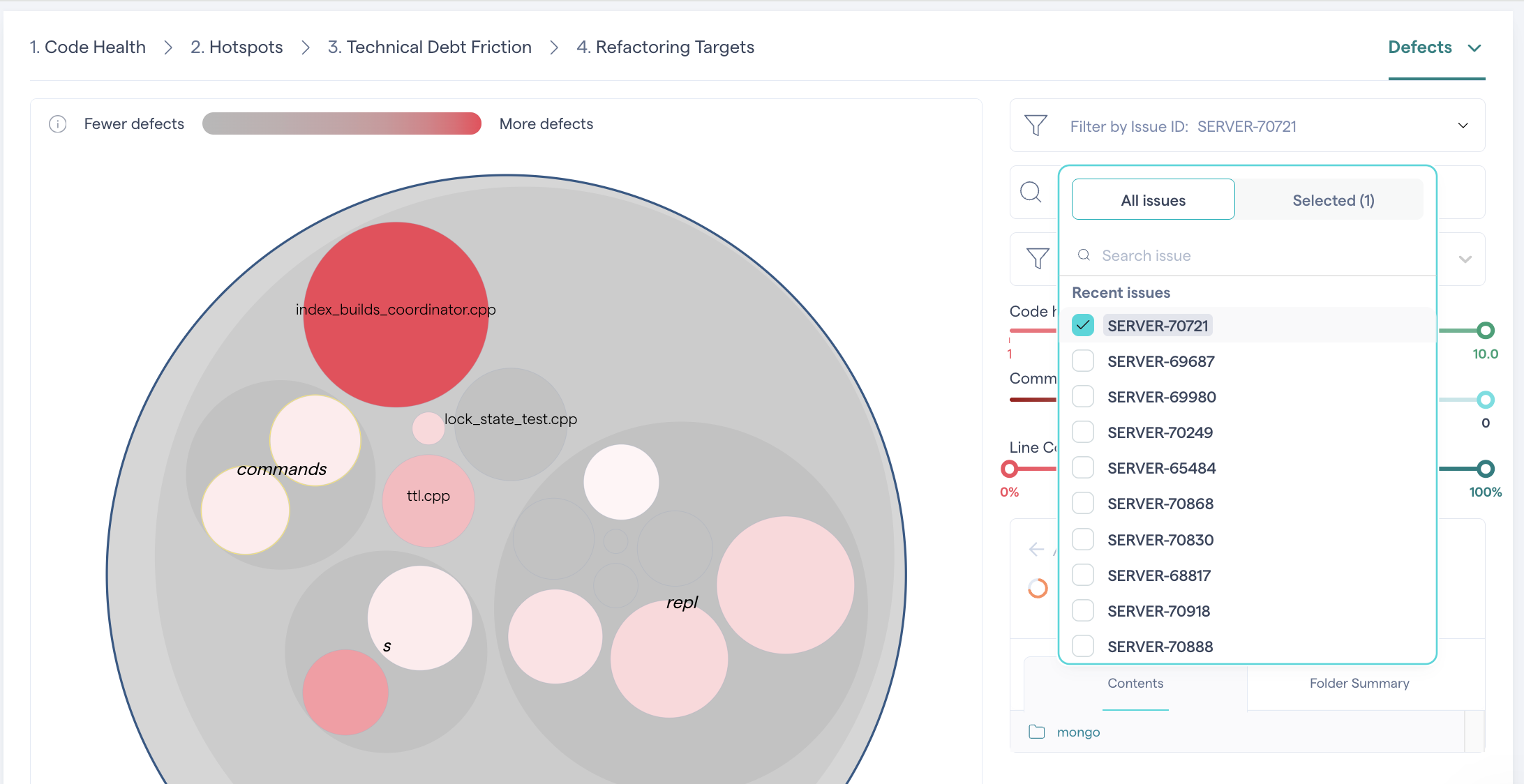
For a long-running task: Were the files it touched hotspots with low Code Health? That's evidence that technical debt slowed the work down.
For a bug: Was the fix in a known defect magnet? That's a candidate for refactoring.
Retro outcome to aim for: One or two named files or areas where technical debt measurably cost the team time and a decision on whether to address them.
Use case 2: Sprint planning. Look forward with the technical debt map
Delivery data tells you what technical debt has already cost. In planning, use that history to predict where upcoming work will be risky and to make the case for improving the code first.
Check whether the files you'll touch are known defect magnets
Ask developers which files or components the upcoming stories are likely to touch.
Open Code > Technical Debt and switch on the Defects and Low Code Health aspects.
Find those files on the map. Red files with a high defect density are high-risk so expect longer Development Time and more follow-up bugs.
Plan for it: Add buffer, pair on the work, add tests first, or schedule a targeted refactoring.
Learn from similar work done before
If a new story resembles an earlier task, filter the technical debt map by the earlier task's issue ID. You'll see exactly which files that work touched.
If those files are low Code Health hotspots, the new story will likely hit the same friction.
Compare the earlier task's Development Time in the Delivery task table with the team's average. A task that took much longer than average in unhealthy files is a realistic warning for the new one.
Make the business case for uplifting Code Health
When feature work is planned in unhealthy code, bring the evidence to the product owner:
Then propose a small, scoped improvement to refactor the top one or two hotspots in the area before or alongside the feature. Research shows healthy code supports up to 10x faster development and 15x fewer defects, so the improvement pays off on this feature and the next ones.
Close the loop
After the improvement ships, track Development Time and Unplanned Work for tasks in that area over the next few sprints. Because Delivery is a lag metric, expect the effect to show over several tasks, not immediately. This trend is the evidence you take back to stakeholders.
Quick reference by ceremony
Related articles and sources
Was this helpful?
Still need help? Ask the team