How to reset Single-User MCP access token?
1.) Open the reset page
Go to the reset page https://codescene.com/product/mcp-server/reset-license and enter the email address connected to your CodeHealth™ MCP Server token.
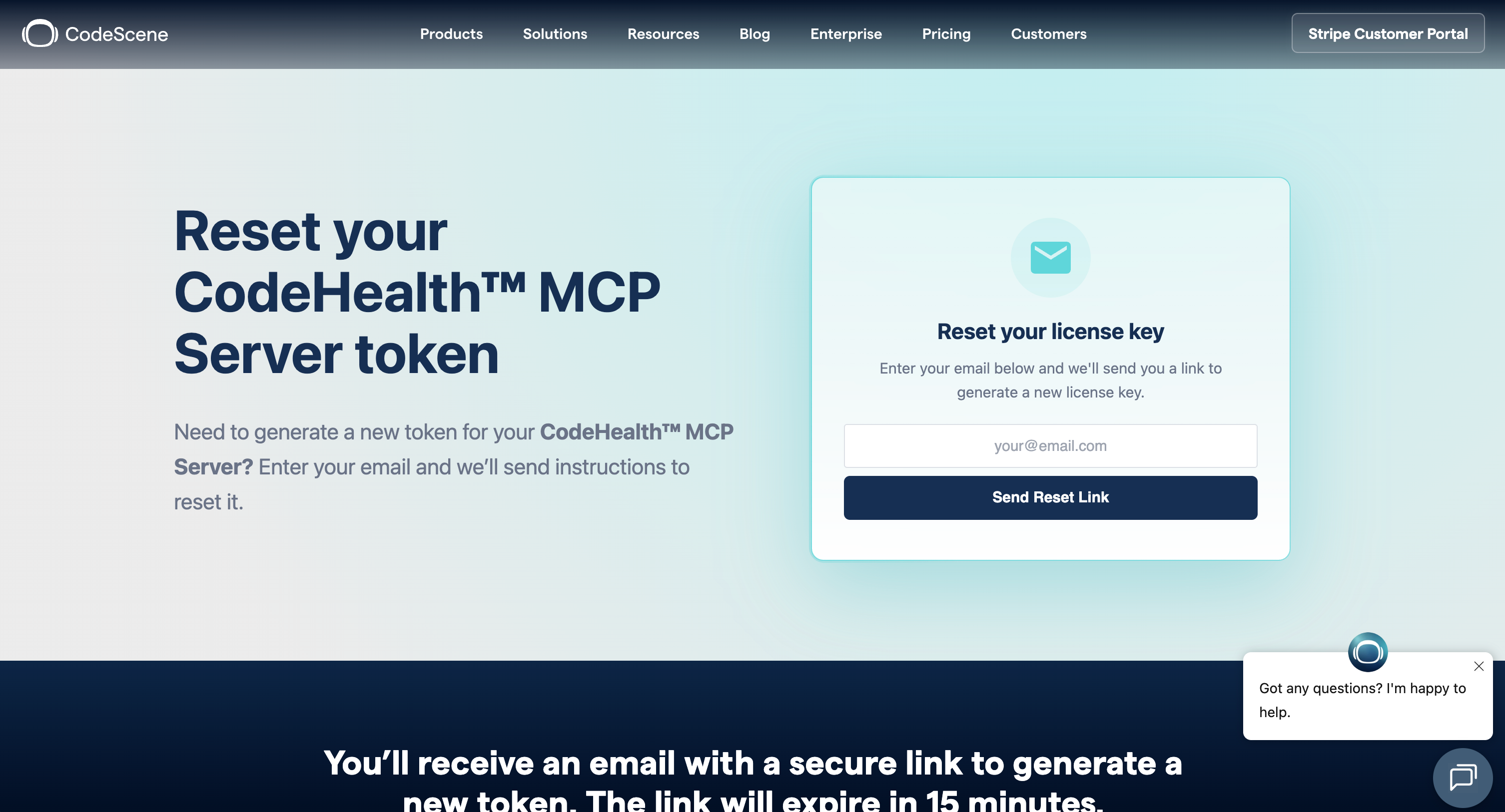
Click Send Reset Link to start the reset process.
2.) Check your inbox
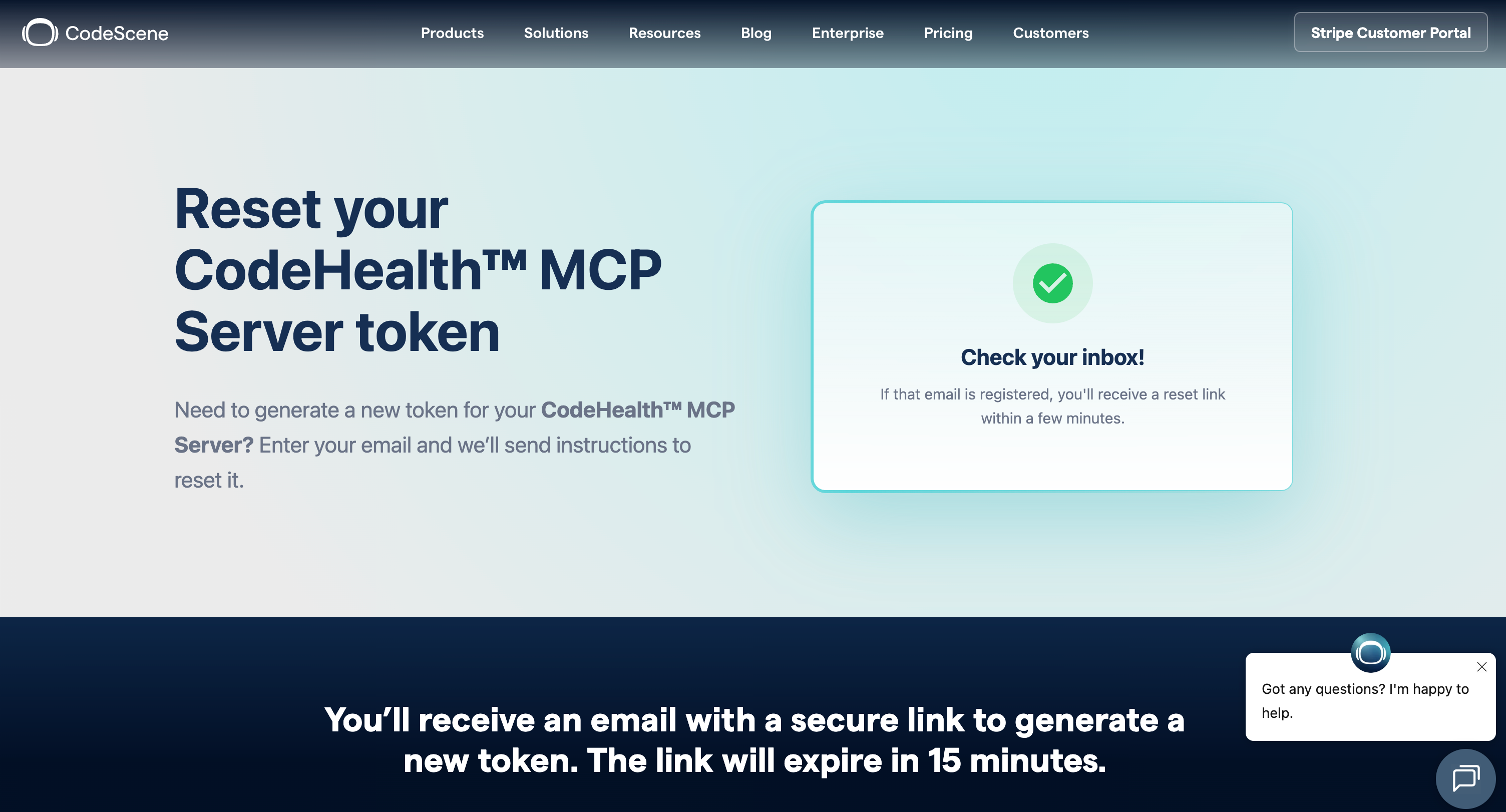
After submitting the form, you’ll see a confirmation message on the page. If the email address is registered, a reset link will be sent within a few minutes.
3.) Open the reset email
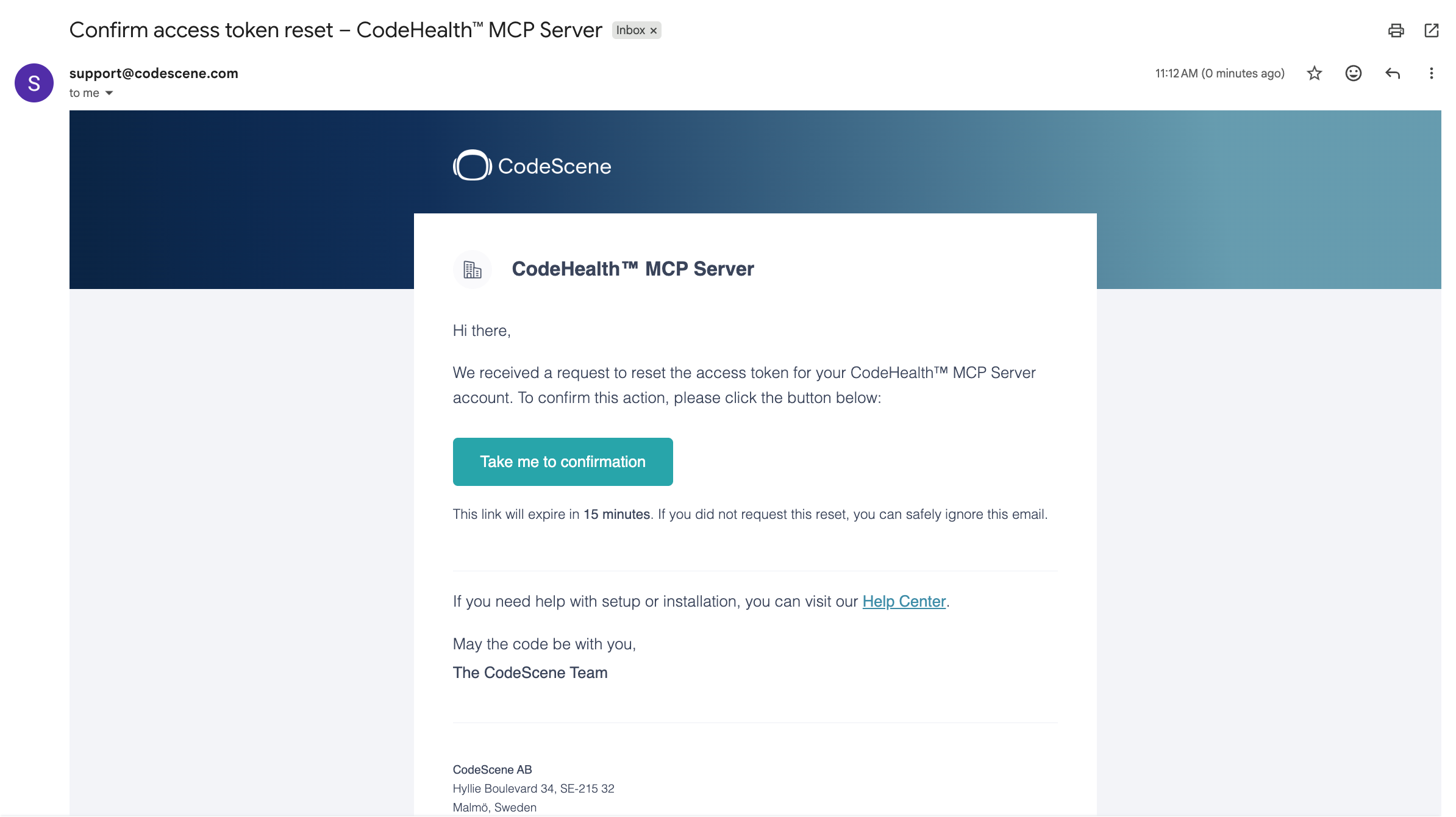
Check your inbox for the reset email from CodeScene. Click Take me to confirmation to continue with the token reset.
4.) Confirm the reset request
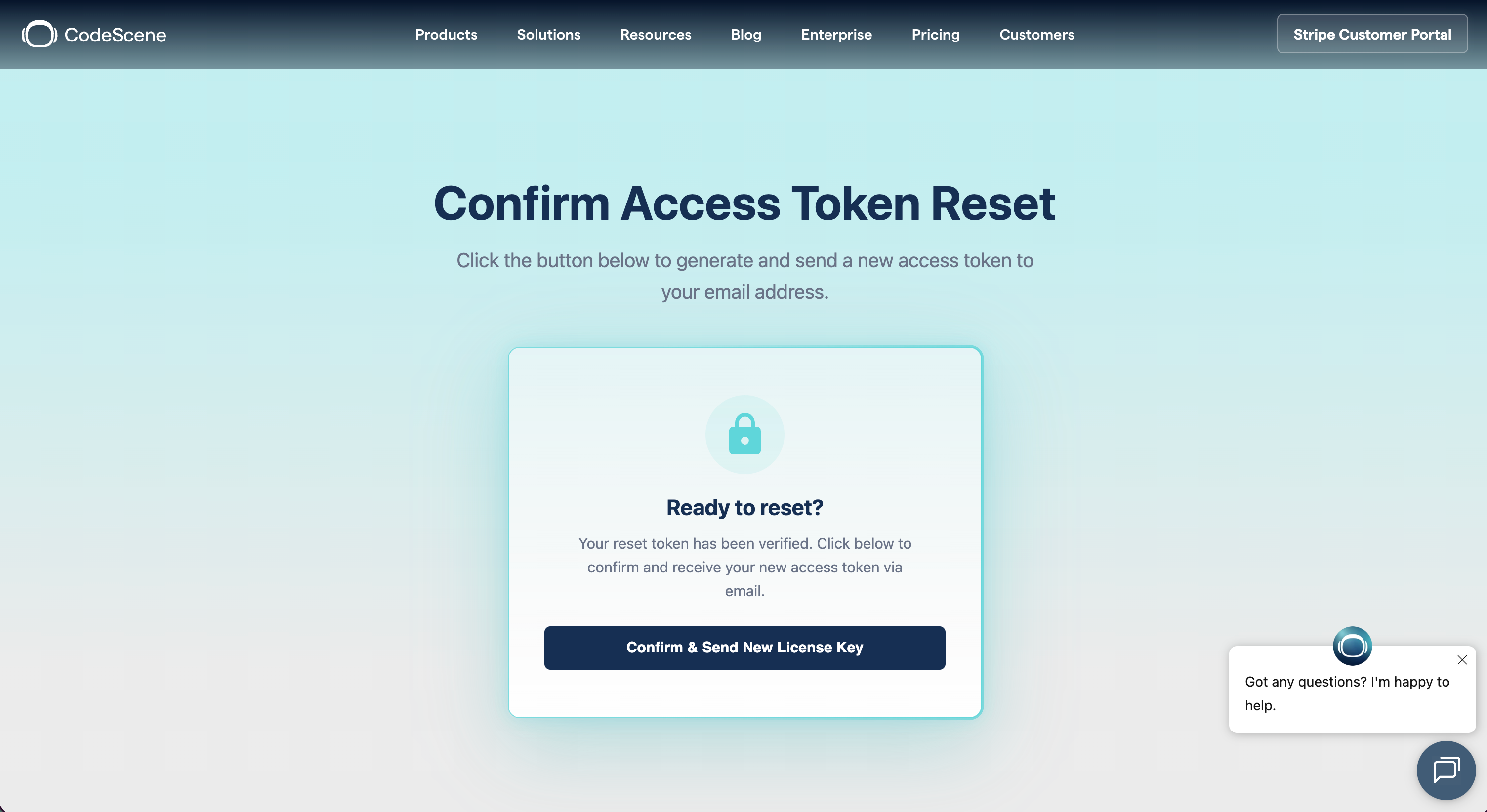
On the confirmation page, click Confirm & Send New License Key to generate and send a new token to your email address.
5.) Wait for the new token email
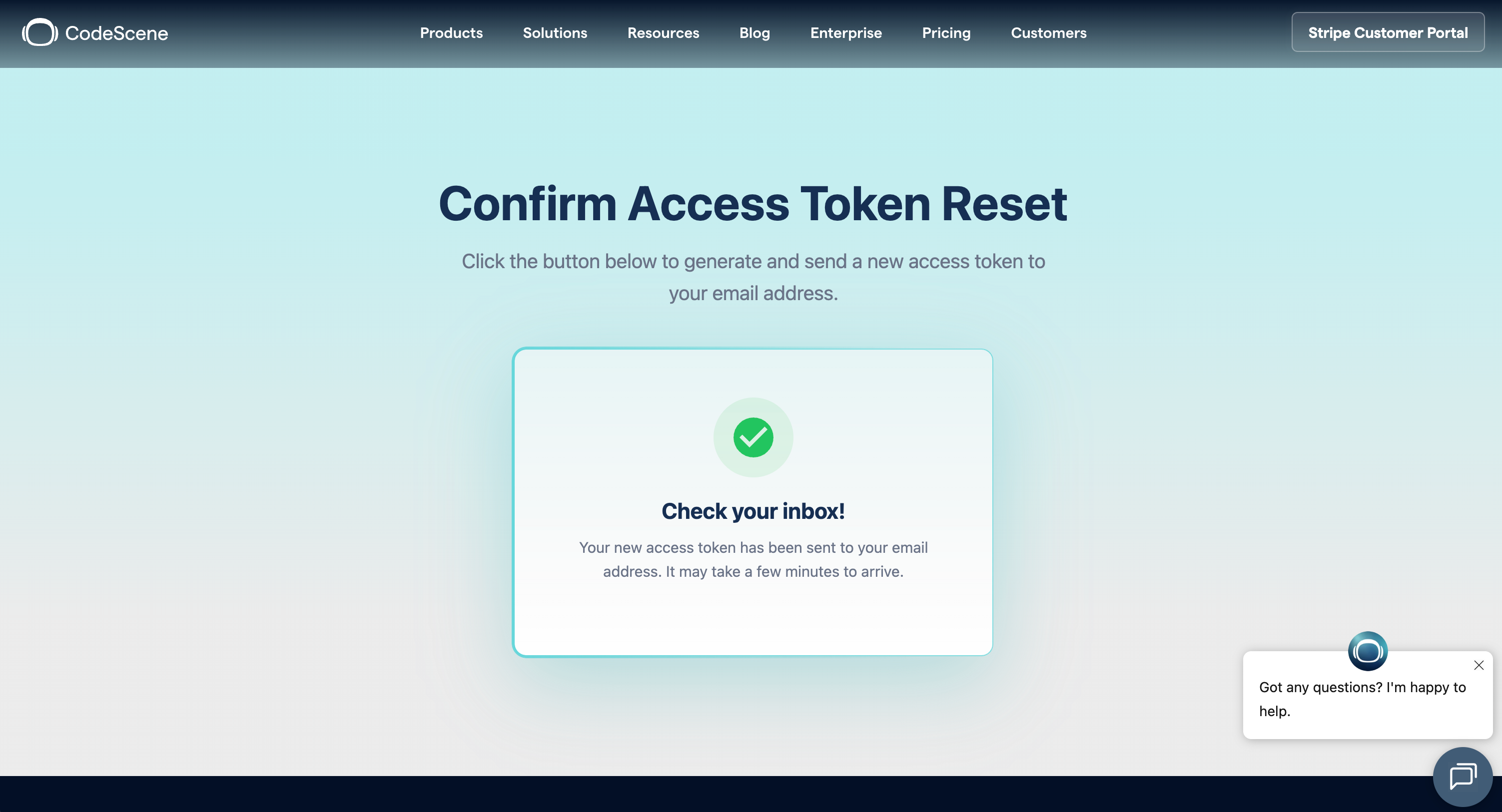
After confirming, you’ll see another confirmation message telling you to check your inbox again. Your new token should arrive within a few minutes.
6.) Copy and store your new token securely
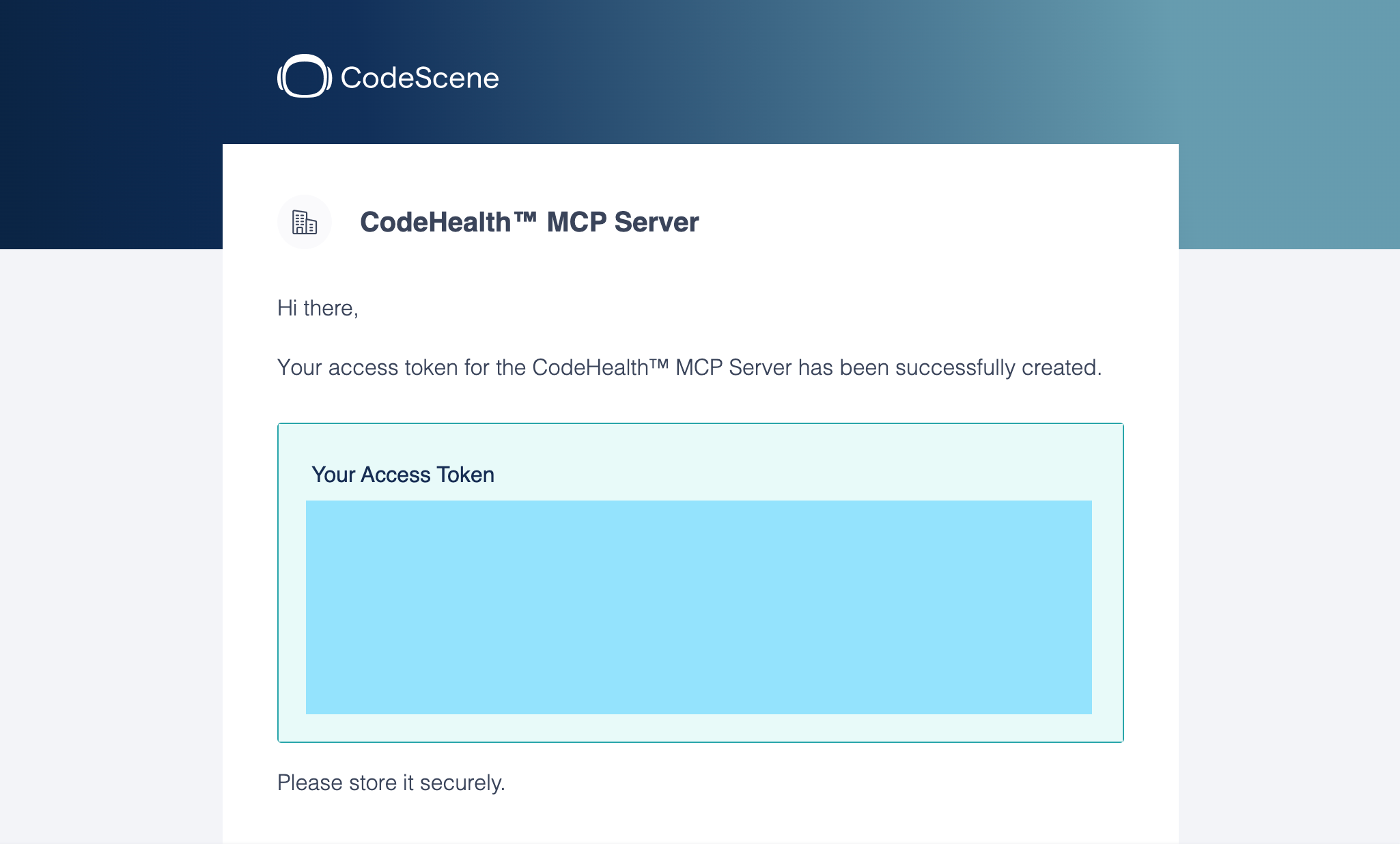
In the final email, you’ll receive your new access token. Store it securely and replace the old CS_ACCESS_TOKEN value in your MCP configuration.
7.) Use the installation guides if needed
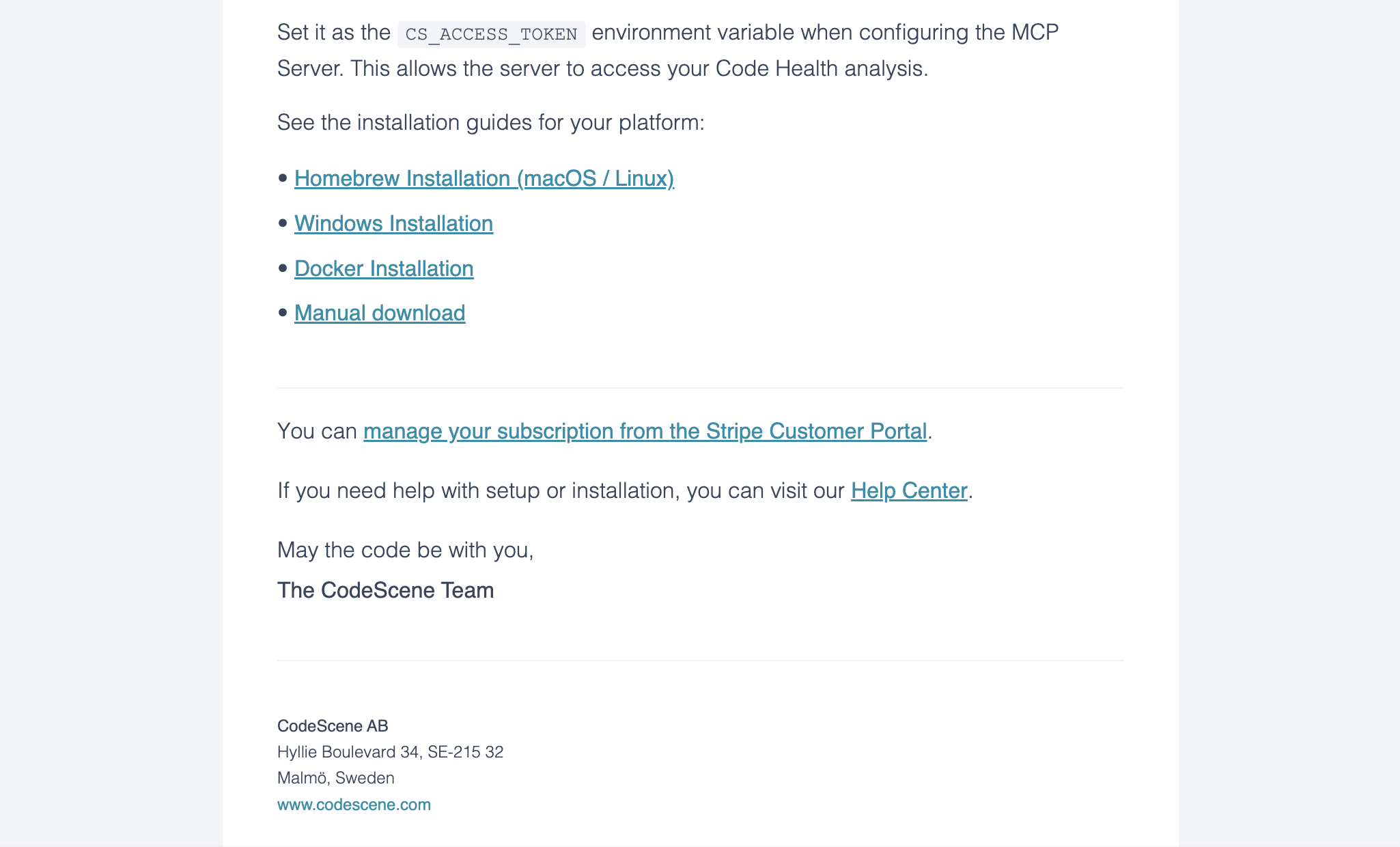
The final email also includes links to the installation guides for different platforms. Use those links if you need help updating your MCP setup with the new token.
Having a technical issue?
If something is not working as expected during installation, configuration, or use of CodeHealth™ MCP Server, please raise a GitHub issue here.
Before submitting, include:
Operating system
MCP client or editor
MCP version, if available
(cs-mcp --versionfor Homebrew or manual installations)the installation method you used
the exact error message
whether the issue happens during installation, configuration, or tool usage
If you share configuration snippets, make sure to remove or mask your access token first.