How do I view previous analysis results in CodeScene Cloud?
Every analysis CodeScene runs on your project is kept as a separate job. You can open any earlier job to see how your code looked at that point, and compare it with your latest results.
Steps
Find your project ID. Open your project in CodeScene Cloud. The project ID is the number in the browser’s address bar, right after
/projects/. For example, inhttps://codescene.io/projects/12345/...the project ID is12345.Open the jobs list. Go to:
https://codescene.io/projects/<projectID>/jobs/
This page lists every analysis job for the project. For each job you see its Job id, when it was Created and Updated (in UTC), and its Status. [Insert screenshot: “Jobs for project React”]Open an earlier analysis. Click a Job id to open the full results of that analysis: the dashboard, Code Health, hotspots and so on, as they were when that job ran.
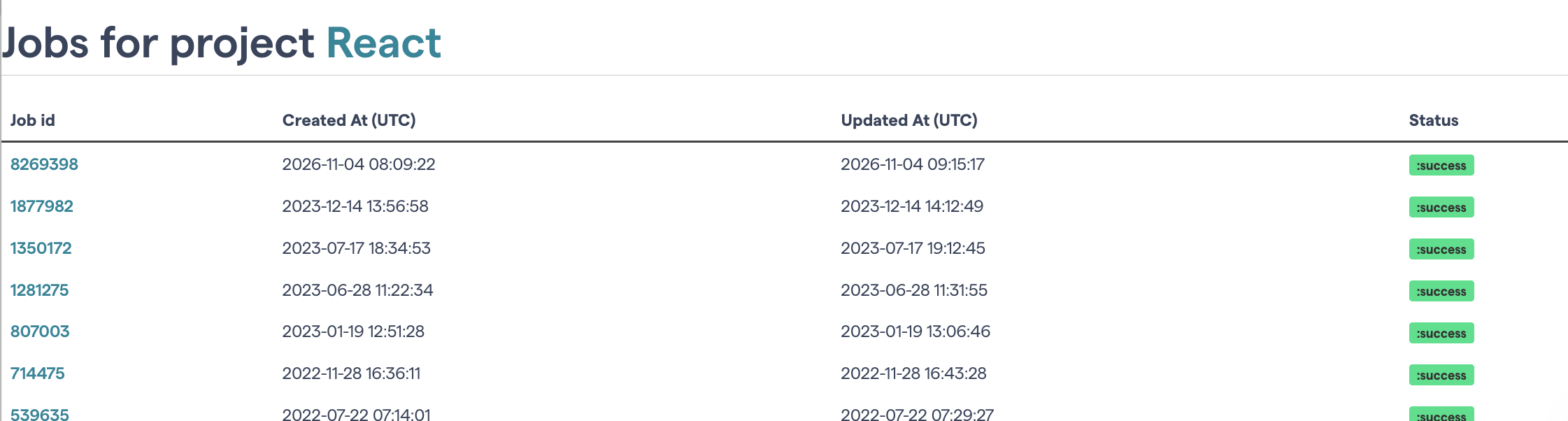
Comparing then and now
Open an older job in one browser tab and your latest analysis in another, then compare the same view side by side (for example Code Health or Hotspots).
Use the Created At date to pick the point in time you want, such as before a refactoring initiative or at the start of the quarter.
Only jobs with the status
:successhave complete results to look at.
Was this helpful?
Still need help? Ask the team